

Prerequisites
Before you begin, ensure you have:- An Passy API key
- Cursor IDE installed
- Basic familiarity with Cursor’s AI features
Integration Guide
Cursor supports OpenAI-compatible API endpoints, making it easy to integrate with Passy.Get Your Passy API Key
First, you’ll need to obtain your Passy API key.- Log in to your Passy dashboard
- Navigate to the API Keys section
- Create a new API key and copy it for later use
Configure Cursor Settings
Now let’s configure Cursor to use Passy as your AI provider.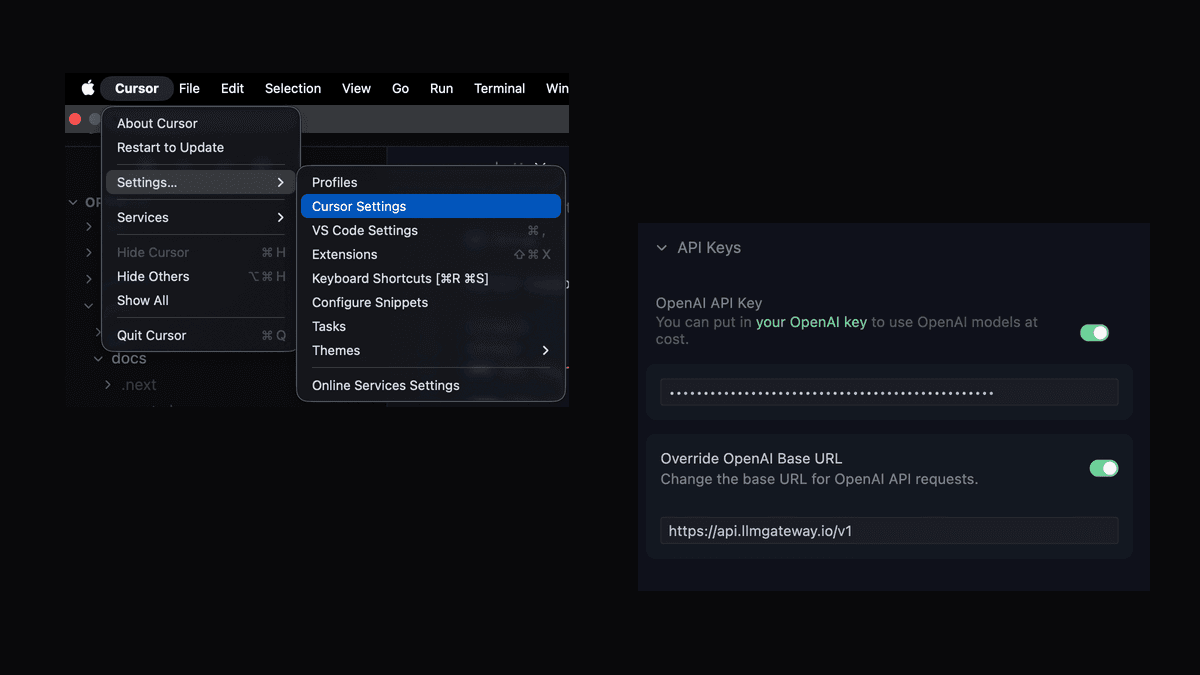
- Open Cursor and press
Cmd/Ctrl + ,to open Settings - Search for “Cursor Settings” or click on the Cursor tab
- Click on Models in the sidebar
Add Your API Key
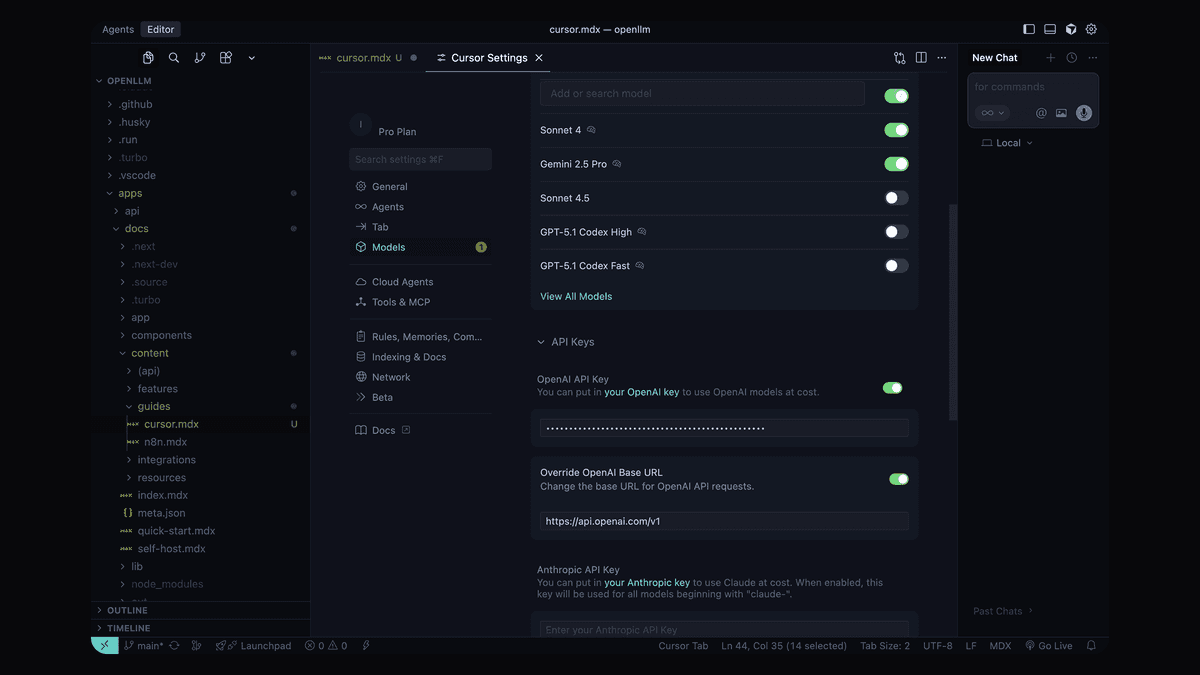
- In the Models section, scroll down to the OpenAI API Key section
- Click on Add OpenAI API Key
- Enter your Passy API key in the input field
- Click Save
Configure Base URL
- In the same Models settings page, find the Override OpenAI Base URL option
- Enable the toggle for Override OpenAI Base URL
- Enter Passy’s API endpoint:
https://api.passy.ai/v1 - Click Save
Select Your Models
Now you can select which models to use for different features.- In the Models section, you’ll see options for:
- Chat Model - for AI conversations (Cmd/Ctrl + L)
- Autocomplete Model - for code suggestions as you type
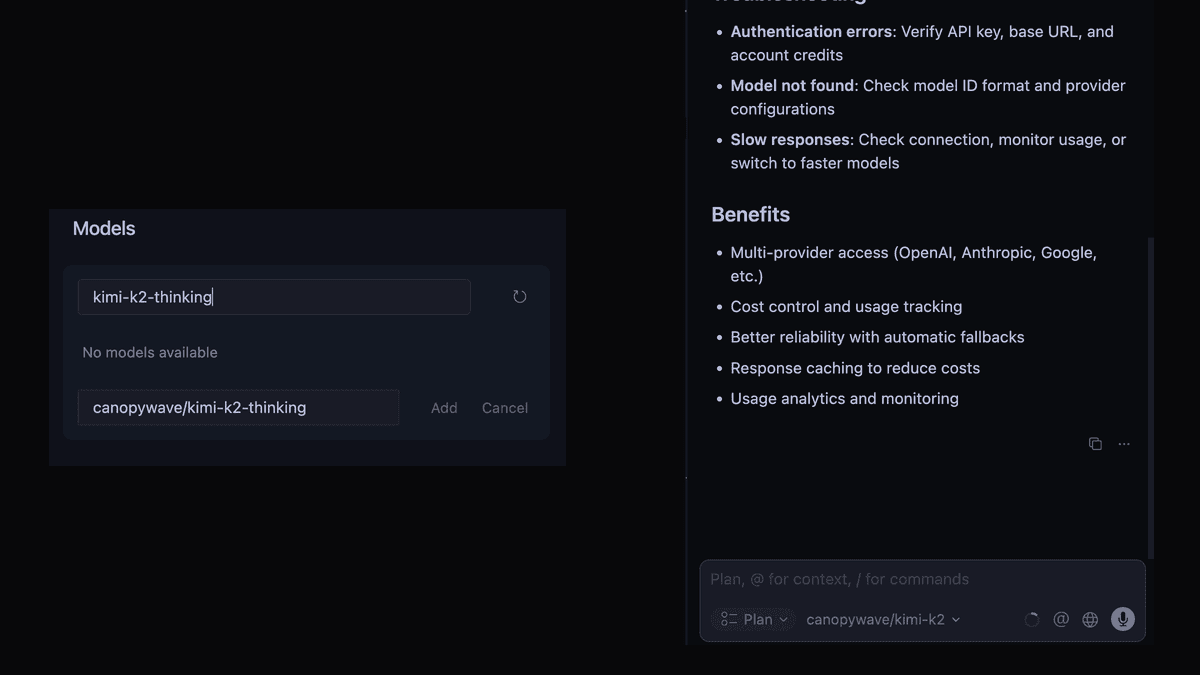
- Choose any Passy supported model:
gpt-5- OpenAI’s GPT-5 (balanced performance)claude-4.5-sonnet- Anthropic’s Claude 3.5 Sonnet (excellent for coding)gemini-3.0-flash- Google’s Gemini 3.0 Flash (fast responses)gpt-5-mini- Cost-effective for autocomplete
- Provider-specific:
openai/gpt-5,anthropic/claude-4.5-sonnet - Discounted models: Check the discounted models page
- Free models: Check the free models page
- Reasoning models: Check the reasoning models page
Tip: Use a powerful model like
claude-4.5-sonnet for chat, and a faster,
cheaper model like gpt-5-mini for autocomplete to optimize cost and
performance.Test the Integration
Verify that everything is working correctly.- Open any code file in Cursor
- Try the AI chat by pressing
Cmd/Ctrl + L - Ask a question like “Explain this code”
- Test autocomplete by starting to write code
Success! All AI requests are now routed through Passy. You can monitor
usage and costs in your Passy dashboard.
Features
Once configured, you can use all of Cursor’s AI features powered by Passy:AI Chat (Cmd/Ctrl + L)
Open an AI-powered chat panel to:- Ask questions about your codebase
- Request code explanations and documentation
- Get debugging help and suggestions
- Generate new code snippets
Inline Edit (Cmd/Ctrl + K)
Edit code directly with natural language:- Refactor functions and classes
- Add new features to existing code
- Fix bugs with AI suggestions
- Optimize and improve code quality
Autocomplete
Get intelligent code suggestions as you type:- Context-aware completions based on your codebase
- Multi-line code predictions
- Smart imports and function signatures
- Adaptive learning from your coding patterns
Advanced Configuration
Using Different Models for Different Features
Optimize your workflow by using different models for different tasks:| Feature | Recommended Model | Why |
|---|---|---|
| Chat | claude-3.5-sonnet or gpt-4o | Best for complex reasoning and explanations |
| Autocomplete | gpt-4o-mini | Fast and cost-effective for real-time suggestions |
| Code Review | gpt-4o | Thorough analysis and suggestions |
Model Routing
Passy’s intelligent routing automatically:- Chooses cost-effective models by default for optimal price-to-performance
- Scales to more powerful models based on your request’s complexity
- Handles large contexts intelligently by selecting models with appropriate context windows
- Falls back to alternatives if a model is unavailable
Troubleshooting
Authentication Errors
If you encounter authentication issues:- Verify your API key is correct and active
- Ensure the base URL is set to
https://api.passy.ai/v1 - Check your Passy account has sufficient credits in the dashboard
- Try removing and re-adding the API key in Cursor settings
Model Not Found
If you see “model not found” errors:- Verify the model ID exists in the models catalog
- Check you’re using the correct model name format
- Some provider-specific models may require additional configuration
- Try using a standard model name like
gpt-4oorclaude-3.5-sonnet
Slow Responses
If responses are slower than expected:- Check your internet connection speed
- Monitor your usage in the Passy dashboard
- Consider using faster models like
gpt-4o-minifor autocomplete - Reduce context size by limiting the number of files Cursor analyzes
Benefits of Using Passy with Cursor
Multi-Provider Access
Access models from OpenAI, Anthropic, Google, Meta, and more through a single API.Cost Control
Track and limit your AI spending with detailed usage analytics and budget controls.Response Caching
Reduce costs by up to 90% with intelligent caching of similar requests.Analytics Dashboard
Monitor usage patterns, costs per model, and optimize your AI spend.Automatic Fallbacks
If one provider is down, Passy automatically routes to alternatives.Smart Routing
Let Passy choose the best model for each task based on cost and performance.Next Steps
Now that you have Cursor integrated with Passy:- Explore the full model catalog
- Set up usage limits and budgets
Need Help?
WhatsApp Support
Chat with us instantly for quick questions
Book a Call
Schedule a call for enterprise routing, custom GPU servers, or migration
assistance